Apple Music Integration
Transform your notch into a beautiful audio visualizer synced with your music.
What is Music Integration?
A dynamic audio visualizer for your notch

When Apple Music is playing, QuakeNotch transforms your notch into a real-time audio visualizer that reacts to the music. Watch the oscillator dance to your favorite songs.
- Music Oscillator: Dynamic waveform animation when you play a song
- Now Playing Display: See song, artist, and album info
- Multiple Themes: Choose from different visualizer styles
- Automatic Switching: Shows music when playing, terminal when not
Audio Visualization
The oscillator explained
The oscillator is only a visual effect. It doesn't affect your music or system performance.
Visualization Themes
Customize how the visualizer looks
QuakeNotch includes multiple visualization themes to match your aesthetic and workflow.
Classic
Traditional oscillator wave animation
Neon
Vibrant neon-glow oscillator style
Rainbow
Colorful rainbow gradient visualization
Minimal
Clean and subtle oscillator animation
Trans
Trans pride flag-inspired color theme
Femboy
Soft pastel pink and blue color theme
Change themes in Preferences → Appearance → Music Visualizer Theme.
Now Playing Display
See song information at a glance
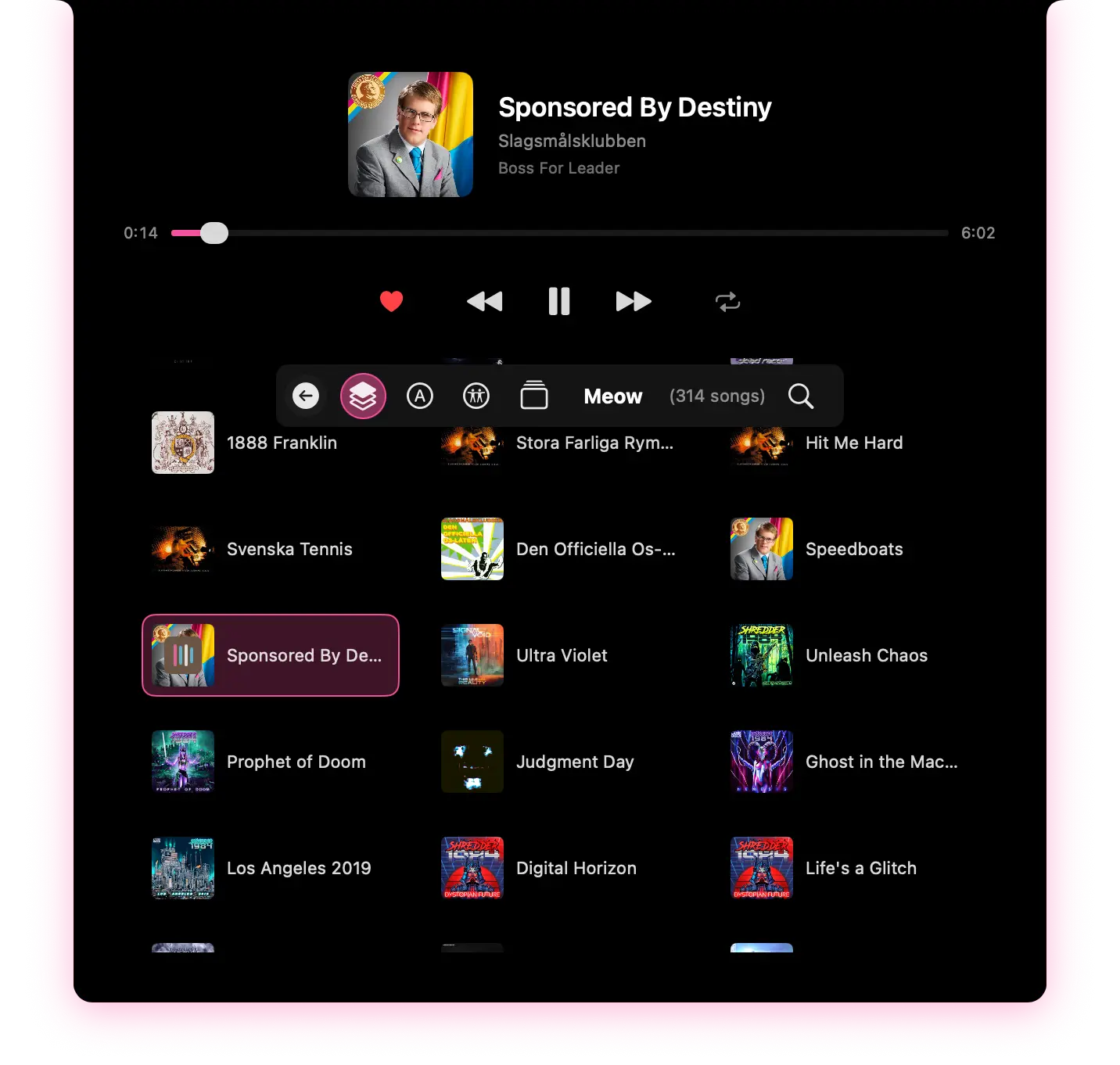
When you hover over the oscillator or click on it, QuakeNotch displays:
- •Song Title
- •Artist Name
- •Album Name
- •Playback Progress Bar
- •Current Time / Total Duration
Music Explorer
Browse your library from the notch
Quickly browse your Apple Music library without leaving QuakeNotch.
- • Search your music library
- • Browse playlists
- • View recent plays
- • Quick add to up next
- • Start playing directly
Access the music explorer from the Apple Music menu in preferences or click the music icon when music is playing.
Notch Shadows & Effects
Visual polish for your experience

QuakeNotch adds subtle shadow effects to make the visualizer stand out from the notch background.
Troubleshooting Music
Solutions for common issues
Music isn't showing or visualizing
1. Check that Apple Music is actively playing
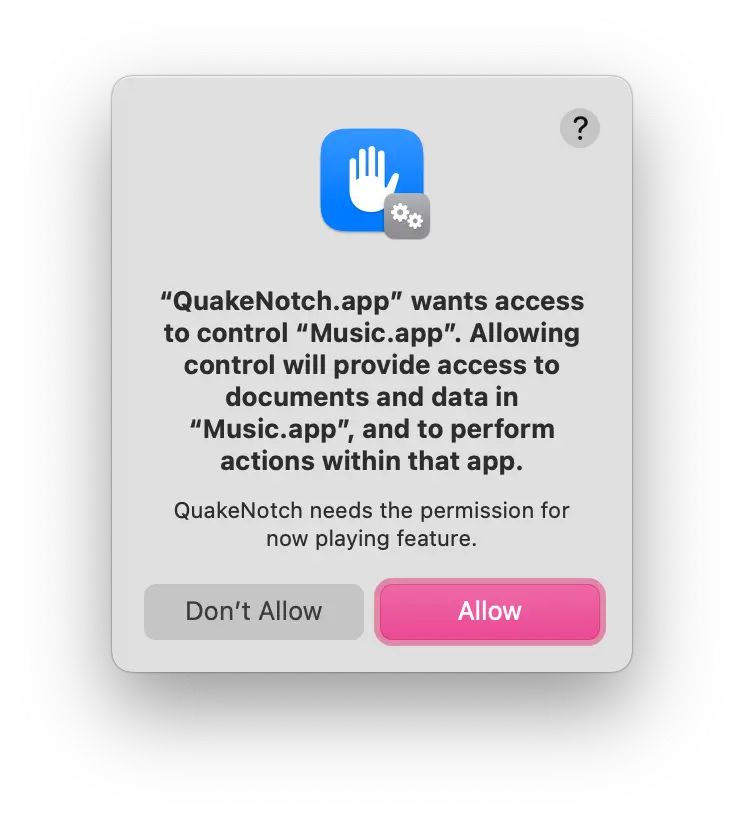
2. Grant QuakeNotch Media & Apple Events permission in System Preferences
3. Restart QuakeNotch